Share Images for Ecommerce Stores
When someone shares a link to your store, the app can show a preview image alongside it. That picture gives your page space in the conversation without an ad. Across seven stores we looked at, some pages shared no picture, some used a generic image and some used an older one.
What is a share image?
A share image is the picture a page provides for its link preview. It’s the page’s Open Graph image, set through an og:image tag.
You can set an image by hand and use it across your store. That gives your pages a picture, and it’s a reasonable place to start. Giving each page its own image takes more work: whenever you want a new picture, someone has to design it and add it.
What stores share today
We looked at public pages from seven stores. Their links show how much the preview image can vary, even within one store.
Gymshark’s leggings collection shares no picture. Its homepage shares a square 2019 banner, while product pages share a 1692 × 2018 photo made for the product page.
Chamberlain Coffee’s homepage and blog pages share no picture. Its coffee-beans collection uses a fixed summer banner from 2023. The store sells coffee, matcha and cold brew, and launches new products under announcements such as “Coconut Cold Brew and Matcha are here.”
Princess Polly and Topicals both have home and collection pages that share no picture. Topicals has 35 products: a focused catalog, with a home page and collections alongside those product pages.
Elsewhere, the image itself varies in shape and size. Chubbies’ collection shares a 1219 × 1872 banner weighing 4.3 MB, close to the 5 MB limit some apps enforce. Tecovas’ collection shares a 975 × 400 crop of legs on a bench. Cotopaxi’s all-products collection shares a square product cutout titled “All.”
Three ways to make share images
Make them by hand. You can design and upload an image for each page. That works for a few pages. Topicals’ 35 products alone would mean 35 images, before its home page and collections. New products and changes give someone another set to make and upload.
Build your own automation. You can build a system that makes images from your store’s information. It can cover more pages than a designer working one at a time, but someone still has to maintain the system as the store changes: new page types, missing photos and different collection layouts all need handling.
A Gymshark drop shows why the timing matters too. One drop adds a collection, a product page for each style and each style in its colours, all at once, and drops sell out fast. Images that arrive after the drop arrive too late.
Build each image from the page itself. That’s our approach. A collection image can use its name and product photos; a guide can use its title and picture. As your store adds pages, the images come from those pages instead of a separate design queue.
There are limits to what an image can show. When a page doesn’t provide a collection name, for example, the image can fall back to the store name and description. And because apps cache images, changing the image won’t replace pictures on links already posted.
What it looks like
These are demos we built from public store pages. They show our renders; they don’t imply the brands use our service.
Gymshark leggings collection
The collection name sits beside a grid of its product photos.
Gymshark product
The product photo appears beside its name.
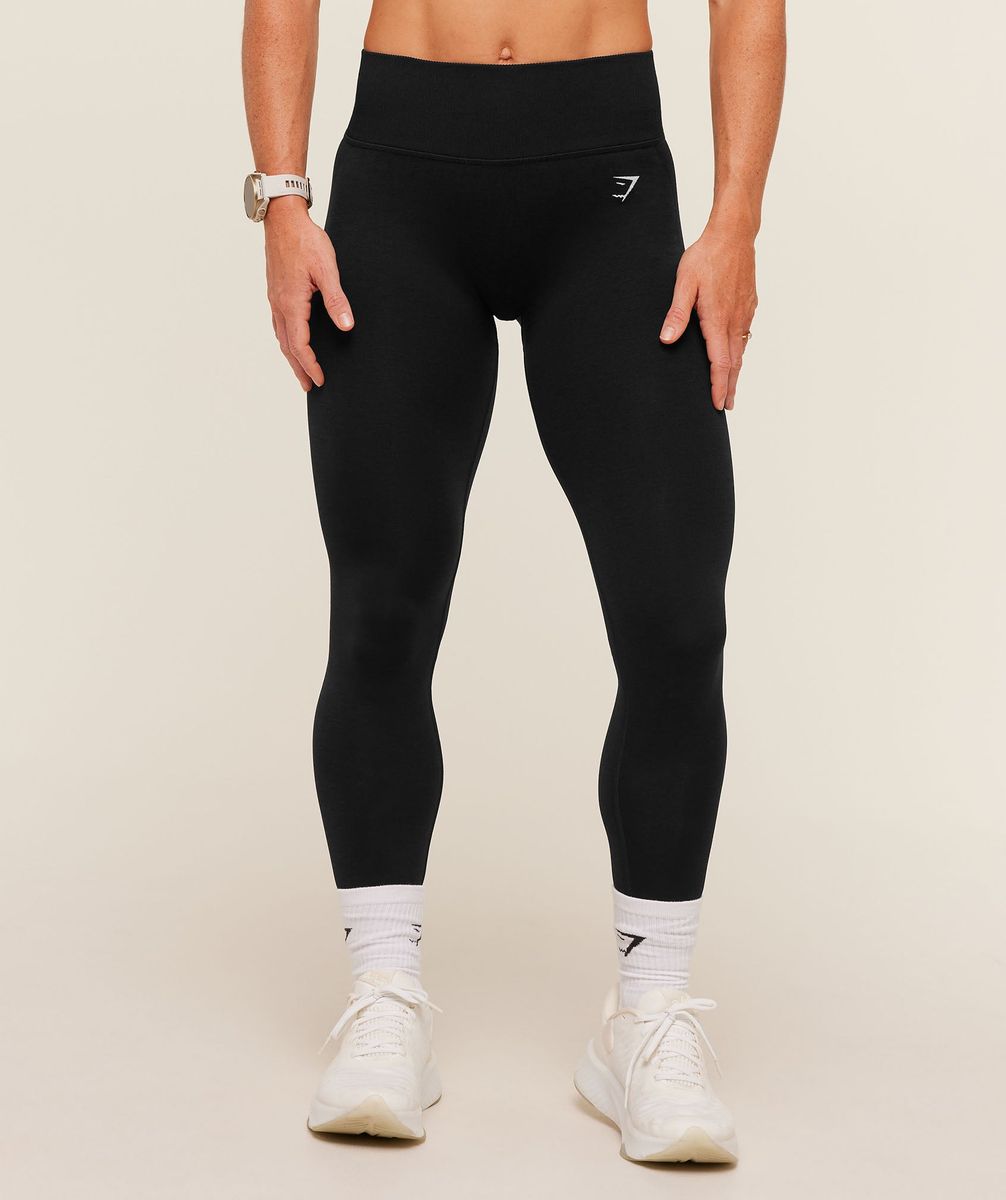
This is the photo the product page shares today.
Chamberlain Coffee coffee-beans collection
The collection name appears alongside four products.
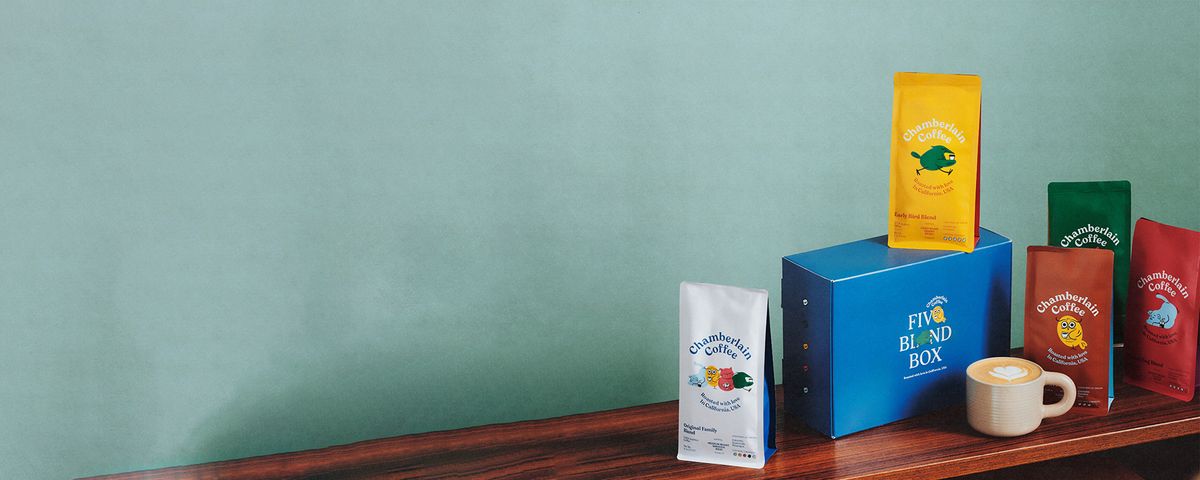
This is the collection’s current shared image.
Chamberlain Coffee cold brew guide
The guide’s title and picture appear together.
Chubbies swim trunks collection
This render falls back to the store name and description rather than naming the collection.
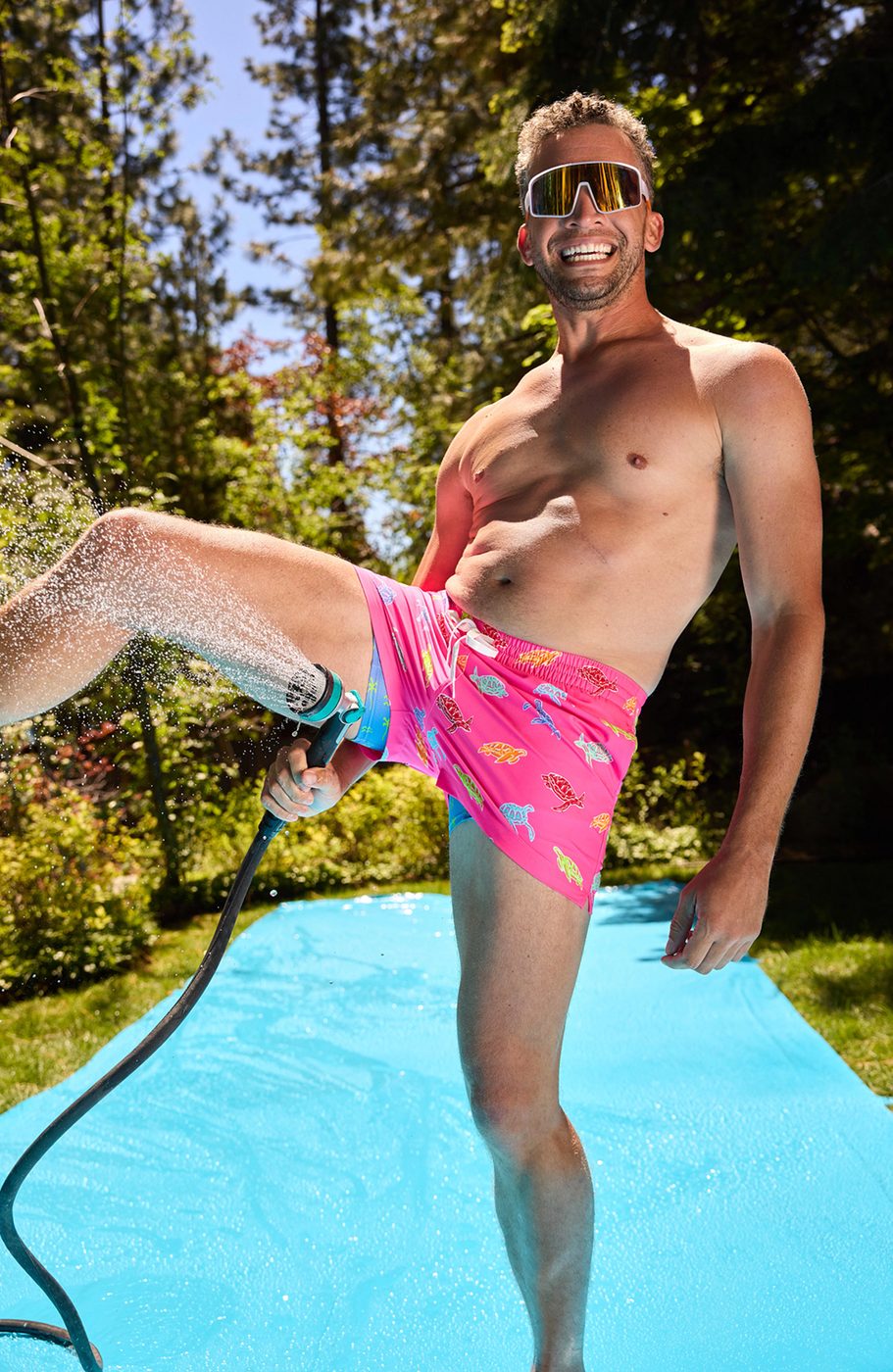
This is the collection’s current shared image.
Topicals hyperpigmentation collection
The image uses the collection’s name and description.
Switching it on
Your pages need one change. Point their og:image tag at our image. Claude or another coding agent can make that change.
To get started, request access. We’ll send you the getting-started prompt and the set-up steps. Give the agent access to your store’s code and the image URL from our setup, then ask it to update the og:image tag for each page to use its corresponding image. Check the resulting link previews before publishing the change.
Your site looks the same to visitors. The share images are built from your pages, so nobody on your team has to design or maintain them.
Explore our reviews of the public pages for Gymshark, Chamberlain Coffee, Chubbies and Topicals.